Plug-ins, Plug-ins, Plug-ins~
- The Archivist

- 2 days ago
- 7 min read
I currently have 41 plug-ins installed in Obsidian.
We'll be lucky if I make it through this post without installing another.
I can't help it. I get bored and start wondering, "What other cool plug-ins do people use? How can I optimize my setup further?" Then, within minutes, I find myself browsing articles or Reddit and installing new plug-ins to tinker with, which, to be fair, is a much better pastime than doom scrolling.
You've seen the Theme already, but look! Look at how much prettier it's becoming.

Restoring and surpassing my Vault's former glory has taught me two major lessons about myself:
Visual elements matter to me way more than I ever thought they did, and
I work my best magic when I can see the first fully completed rough draft and can then iterate upon it with tweaks and adjustments.
I'm actually going to do something different this week and focus only on the first point, then expand upon the second in next week's post. I'm slowly learning that I don't need to write about an entire topic to its full completion in one sitting. I can break it down into parts. It only took, you know, a couple years.
Visual Elements Matter
Iconize and Iconic
I decorate my Vault the way a home designer decorates a room people want to inhabit. I labored over some icons in the above screenshot more than others, such as the pin representing the Property, "Met In Session." Others came to me naturally. The common denominator is that every choice was deliberate not just because of the story they told but because seeing them sends little giggles of pleasure skipping through my brain. If the latter didn't happen, if my mind snagged on what icon I had chosen, it meant I hadn't found the right one just yet. Creative expression lives in these small details.
Automatic Table of Contents
If you've followed me for a while, you'll know that I love zooming in and out between the trees and the forest. Even within notes, that hasn't changed, as illustrated in part by the icon choices.
Recently, too, I found a simple plug-in called Automatic Table of Contents, which creates a Table of Contents within the note itself, allowing for an overhead view of any major sections within that note. It is beautiful in its simplicity.
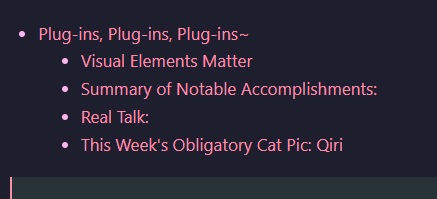
It populates the note with a very simple bulleted list of clickable links formatted from the Headers strewn throughout. In this example, since the title of this post is "Plug-ins, Plug-ins, Plug-ins~" it shows the title as the first bullet, honoring the H1 (or Heading 1), by nesting the rest of the bullets beneath, which are H2 headings. If I were to rename any of them within the note itself, the plug-in would update the list appropriately.
Click any of the links, and it'll take you straight to that section, simplifying navigation through any lengthy notes, and yes, while it is just as easy to open Obsidian's right side panel and use the Outline tab, if you're anything like me and have 50 windows and tabs and sidebars open in your workspace already, the last thing you want to do is add to the clutter.
It's the kind of plug-in I didn't realize I would appreciate until I actually gave it a try. Now, I've included it as a default within a vast majority of my new notes, so that when I open one, I can click where I want to go.
Oh, but there is so, so much more where that came from. (Don't worry, we won't be exploring all 41 plug-ins today.)

To some, this probably looks busy, and it is! but for me, it straddles the line of just busy enough to draw my eye to specific areas where I want to direct my attention, creating natural boundaries for my focus so my eyes don't wander through the text between sections. I know at a glance how the "Meta-Knowledge" Callout at the bottom of the image stands out against the Meta Bind table for the Status Panel. Plain text would work, of course, but when I'm working at my computer, my mind can wander on any given day. With these, I have literal boxes within which to work.
ITS Theme
But let's start at the beginning! Tangential to the plug-ins, let me just quickly shout out the ITS Theme again, or at least the CSS Snippets, because the Callout at the top just under "Vex Thornwall" (a scrap character made specifically for playing with all of these visual pieces) uses a custom Callout design for character relationships. I only wish there were more options, but I'll work with what I have:
"Plain" I'll reserve for acquaintances or neutral parties.
"Family" is for NPCs who are helpful, since we're limited on actual blood family.
"Friend" represents trusted allies.
"Antagonist" stays as is, though I wish there were more options for "unfriendlies."
"Romantic" I'll expand to include those Cael trusts implicitly, the core pillars of their support network.
Although not as relevant for Cael's closest friends or allies, it works well as snapshot blurbs for obscure NPCs, where I might wonder, "Was this guy a gnome or a halfling?"
Meta Bind
Now, Meta Bind on the other hand, there's a plug-in I've had installed for a while but for which I hadn't gathered the motivation to learn the syntax. Until now. Buttons, drop downs, sliders...its utility far surpasses how it's incorporated under the "Status Panel," and I'm looking forward to playing with it further. My primary issue with it is that, to interact with the elements, the note needs to be in "Read Only" mode instead of "Editing Mode," otherwise clicking on the element will show the syntax. It makes sense, but it's a tedious point of friction, since I otherwise stay in the editor. I suspect that'll lessen over time as the character dossiers get filled out and all I need to do is reference them more than add details, but until that point...eh.
Tasks & Statuses and List Callouts
The Callout at the bottom blends the Tasks plug-in with custom ITS Status Checkboxes. Normally, Tasks by itself wouldn't have as many options for the icons that replace the checkboxes, but Themes like ITS or AnuPpuccin have created their own custom series that can be added by just navigating the Tasks plug-in menu. I believe List Callouts works in a similar fashion visually, just without the ability to click the icon to uncheck or check it as a box. I have List Callouts installed, but I haven't played with it extensively, since many of the elements overlap with the Statuses from Tasks.
With Dataview JavaScript
Are any of you the type of person who keeps a small notebook on your person at all times for jotting ideas, thoughts, questions, observations, or whatnot? I do, even though I rarely pull it out while I'm running errands.
The Field Notes in the Character Template follows a similar principle. It's the section where I can jot down quick notes about the character's motivations or aspects about them that are likely to evolve over time instead of remaining static. The Status icons let me indicate whether the notes are plot-related, a question, foreshadowing, etc., but what makes this system shine is that, shown on the right, all of those items then get sorted into different categories based on the type of Status used to represent them using Dataview JavaScript.

Therefore, if I use the "Information" Status at the beginning like I had and then somewhere in the middle and then maybe down at the bottom, I don't have to scan through the Plot item or the Clue or the Example first. I can just reference the index for all the items using the "Information" Status.
Field Notes are for dumping; the Index for retrieval.
cMenu
Last but not least of the plug-ins I'll mention for now, it's been hiding in at least 2 out of the 3 screenshots, and that's cMenu.

Actually, it might be least, because I haven't toyed with it much as of yet.
As a more minimalistic note editing tool, I find it's great for inserting HTML elements outside of Markdown, like the Underline on the far left, but you can also customize it to your own liking. If I click on the square brackets ( [ ] ), for example, it'll open up the Callout editor so I can reference custom callouts or create my own.
In my case, it's incredibly niche, but the moments where I need to call upon its power, it saves me precious navigation time.
Jumping Down Rabbit Holes
As I finish up this post, the question of, "What have others managed to integrate that I haven't thought of yet?" springs to mind once more, and, if I'm being completely honest, as soon as I hit "Publish" I will probably go poking around for more.
Obsidian is such a powerhouse, but I think what I appreciate most about it is that you can keep it as vanilla as you want like my partner does, or you can go absolutely crazy with all the options like I do. Its versatility only continues to astound me, and I have to say, no other digital workspace has titillated me quite as much.
Summary of Notable Accomplishments:
Transcribed:
129.3 (1 hour 11 minutes)
123.3 (1 hour 20 minutes)
124.1 (1 hour)
130.1 - .4 (3 hours)
Total: ~6.5 hours
Read some Daggerheart rules so I can contribute more ideas either during planning or in the moment
Vault clean-up and back-up
A few Wawfuls
Rebuilt the character template, using screenshots for most of this post
Expanded upon the Canonical Calendar and Events Template for campaign session summaries
Decided to encompass both breadth and depth by separating each major section out into their own files within the specific day's folder for depth and then having the main parent file as an abridged version for breadth
Wednesday seems to be "Start the post," day, and Thursday seems to be, "Finish and publish the post," day.
I swear, every Wednesday I tell myself, "I will finish and post on time today!" And then...nope. Dunno what it is about this year so far, but hey, who am I to question the change in season?
Real Talk:
How do you optimize your workspace? Do visual elements matter to you, do you lean more toward pure utility, or something else entirely?
What Obsidian plug-ins do you use and why? I gotta know. Feed the obsession, and tell me!
This Week's Obligatory Cat Pic: Qiri


Comments